


Verified review
Common Ninja has amazing no-code widgets that would beautify a website built on any builder. It is very easy to use and customise. It has as many widgets for almost everyone willing to make their website impressive.
The Common Ninja PDF Viewer widget is a free, no-code embed that displays a library of PDF documents on any website.
Visitors browse PDFs as thumbnails in a grid, preview each one in an inline reader, and download the files they want. One line of embed code drops on 200+ platforms including Framer, Elementor, Divi, Canva, Carrd, Genially, WordPress, and Squarespace.
Use it for product catalogs, datasheets, user manuals, course materials, eBooks, research papers, restaurant menus, and any case where a visitor should browse multiple PDFs in one place.
Product catalogs, technical datasheets, restaurant menus, course materials, conference programs, research papers, government documents, real-estate brochures, owner manuals. Any time you have more than one PDF that visitors should browse together, a single embedded gallery beats a list of broken inline links every time.
A raw PDF link triggers a download or opens the browser's default reader in a new tab, kicking the visitor off your page. The widget renders each PDF in an inline reader on your page with paging, zoom, and a download button visitors can use when they actually want the file. Keeps engagement on the page where the rest of your content is.
B2B sites, hardware vendors, course providers, government portals, and software companies all need to host downloadable PDFs that visitors should be able to find, preview, and pull at will. Each tile has its own download button, and the dashboard tracks views per file so you see which documents matter.
Flipsnack, Issuu, and Google Drive folder links all route visitors off your domain and into a third-party reader with their branding. The widget keeps the reader inside your page, on your domain, with your styling around it, so the document download stays inside your funnel and your SEO equity.
Drag PDF files into the editor or paste their URLs. Add a title and a short description for each file so visitors get context: document name, version, file size, intended audience. Reorder the gallery by drag-and-drop.
Pick a layout (grid, list, or carousel), set the column count, choose a thumbnail style (auto-generated PDF cover or a custom image you upload), and decide whether tapping a tile opens the inline preview reader or downloads the file directly. Style the tiles with Custom CSS for pixel-level brand match.
Copy the one-line embed snippet and paste it on your page on Framer, Elementor, Divi, Carrd, Canva, WordPress, or any of the 200+ supported platforms. Edits in the editor push to every embed without re-pasting, so adding a new PDF or updating a file takes one change in the dashboard.
Grid, list, and carousel layouts cover library-browsing, single-column reading-list pages, and horizontal-scroll featured sets. Switch layouts anytime without re-uploading or losing per-file titles, descriptions, and download settings.
Adjust thumbnail size, corner radius, title typography, description font, hover state, tile spacing, and the action a tap triggers (open inline reader vs direct download). Add Custom CSS for full brand alignment.
Pick from a library of pre-designed skins covering library catalogs, technical documentation, restaurant menus, course materials, and corporate document portals. Each skin is a fully styled starting point; tune from there in the editor.
Column count, tile sizing, and inline-reader behavior adjust automatically across mobile, tablet, and desktop breakpoints. PDFs open in a touch-friendly reader on mobile with pinch-to-zoom and swipe-paging. The gallery looks polished on every screen without extra setup.
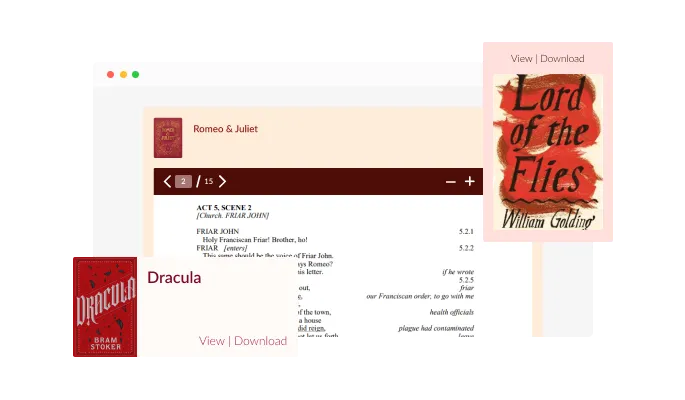
The PDF Viewer widget comes with five layout options that you can choose from — Embed, Gallery, List, Designed List and Grid. This selection of layout options will allow you to choose the best design for your brand and users.
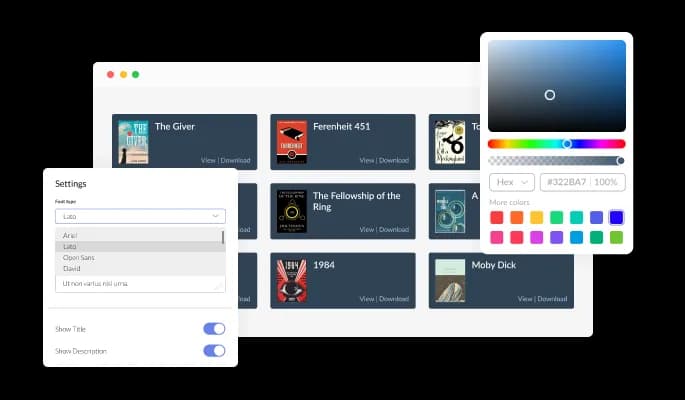
The PDF Embedder widget features full customization options so you can edit the design to fit your needs. Change the colors, the fonts, the spacing and anything else!
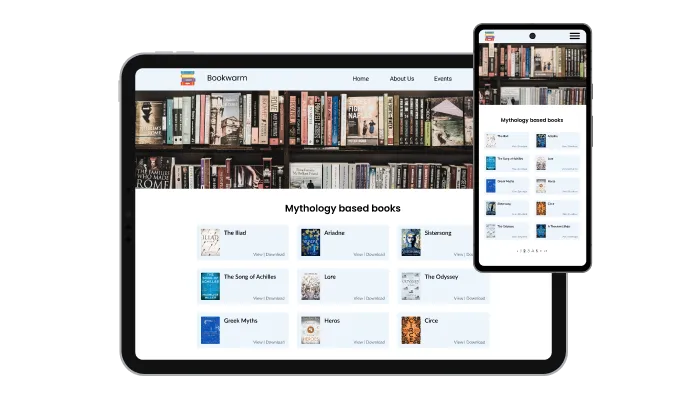
The PDF Viewer is fully responsive and will look great on any device. In a mobile-first world, this feature will put you ahead of your competitors.
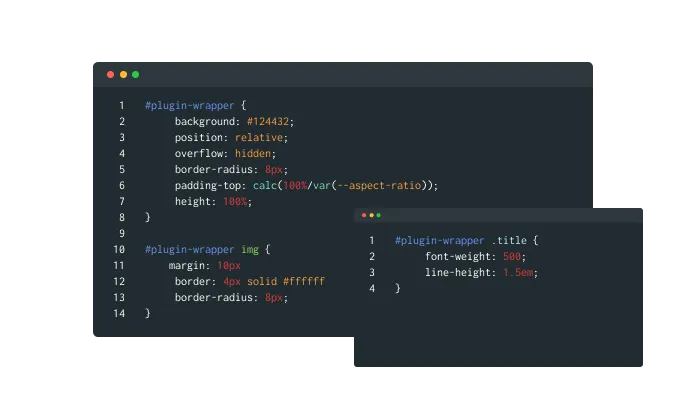
As with all of Common Ninja’s widgets, you can add custom CSS to customize the PDF ebmed widget and be even more creative.
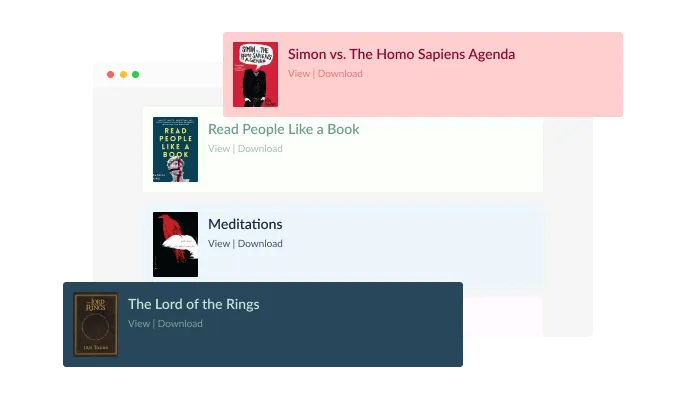
To save you time and effort, the PDF Viewer widget includes a selection of attractive skins that you can choose from to give your viewer a professional and polished look. This way, you don't have to invest a lot of time in extensive customization. Simply pick the skin that best fits your needs and you're good to go!
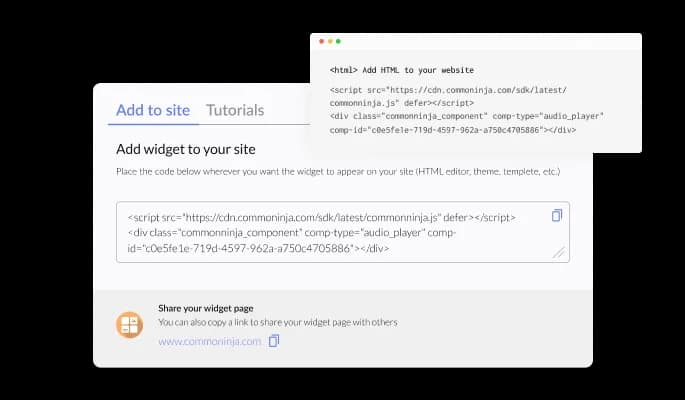
You can embed the PDF Viewer widget on your website easily by copying a single line of code. The widget will also be updated automatically with every change you make.
The PDF Gallery widget is easy to use and requires no coding knowledge. Our intuitive dashboard with the drag-and-drop feature will enable you to customize the widget any way you’d like to with just a few simple clicks.
You can upload an image to be used as the thumbnail for your PDF file. This image could be the cover of a book or any other image that accurately reflects the content of the PDF. By choosing an attractive image, you can increase the chances of users clicking on and viewing your PDF. So consider selecting a visually appealing image to serve as the thumbnail for your PDF file.
Make it easy for your website visitors to download the PDF file by including a Download button on your site. This will give them the ability to access the file and save it for their own use. By clearly displaying a Download button, you can make it simple for your website visitors to get their hands on the PDF file.
Build a PDF library visitors actually browse
Open the editorNo credit card · Setup in under 5 minutes
Common Ninja has amazing no-code widgets that would beautify a website built on any builder. It is very easy to use and customise. It has as many widgets for almost everyone willing to make their website impressive.
Outstanding service. I use their widgets to help me with my web design business and whenever I need help they are very quick to help.
Excellent company with excellent service!!! We used it to build a survey, it was very user friendly. The service was perfect. Amit helped us with every problem and question we had, thank you very much!!!
Common Ninja saved the day when building our website and the customer service Daniel, the co-founder and CEO, provided was amazing.
Yes. The free plan covers one PDF gallery with no time limit and no credit card. Upgrade only when you need additional galleries, premium skins, larger PDF files, or more documents per gallery.
The PDF Flipbook widget renders a single PDF as an animated book with flippable pages and a single-document reading experience. Great for magazines, lookbooks, and brochures meant to be read cover to cover. The PDF Viewer widget shows a library of multiple PDFs as thumbnail tiles and lets visitors pick which one to preview and download. Great for product catalogs, datasheet libraries, course materials, and document portals. Pick Flipbook for one document you want visitors to flip through; pick PDF Viewer for a collection of documents visitors should browse.
Yes. Each PDF tile has a download button visitors can use to pull the file. You can choose whether the default tap action is open-in-reader or direct-download per gallery, and you can disable the download button per file if you want preview-only access for sensitive documents.
Build the gallery in the Common Ninja editor (upload PDFs, pick layout, set thumbnails), copy the one-line embed snippet, and paste it into your site: Framer via a Code Embed element; Elementor via an HTML widget or Code module on the page; Divi via a Code module; Canva via the Embed element on a website page. Edits in the editor push to every embed without re-pasting.
A Google Drive folder link sends visitors to Drive's own UI, where they see Google's branding instead of yours, can't browse a styled tile gallery, and may hit a login wall if folder permissions are wrong. The widget keeps the PDF library inside your page with your branding around it, doesn't require Google sign-in to view, and shows a real thumbnail and description per file instead of Drive's generic file list.
Yes. By default the widget auto-generates a thumbnail from the PDF's first page so every tile shows a real preview. You can upload a custom thumbnail per file if you want a designed cover, a product image, or a category icon instead of the document's first page.
Free plan supports a small library per gallery (good for a product catalog or a small documentation set). Paid plans scale to larger libraries with more files per gallery and bigger per-file size limits. Performance stays smooth even on large libraries because the widget lazy-loads thumbnails as visitors scroll.
Yes. Column count, tile sizing, and inline-reader behavior adjust automatically across mobile, tablet, and desktop breakpoints. PDFs open in a touch-friendly reader on mobile with pinch-to-zoom and swipe-paging. Visitors get the same library experience on their phone as on their laptop.
Pick your platform. Each takes under 4 minutes.

Embed interactive, customizable flipbooks from PDFs on your website.

Showcases videos from various sources in a variety of visually appealing layouts and grids

Displays images and captions in diverse layouts and grids, presenting visually appealing arrangements for showcasing multiple images

An audio player compatible with various files and sources
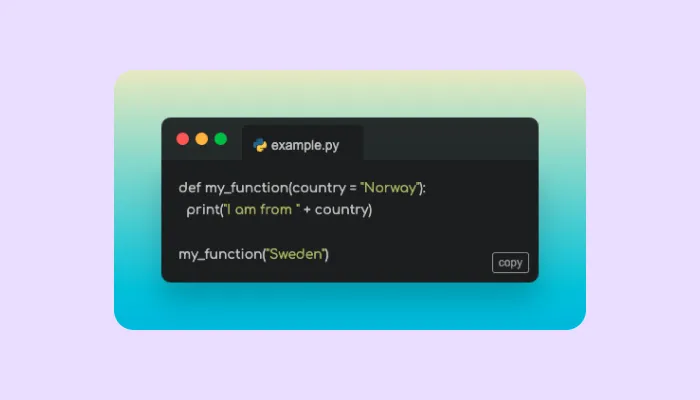
A code snippets widget compatible with various layouts, themes, and more rich features

Displays multiple logos in a scrolling or rotating manner
Yes, you can add custom thumbnails on the PDF Viewer widget to replace the default PDF image.
Yes, you can easily add a download button via the “Settings” tab on the widget’s dashboard, to allow users to download PDF files on your website.
Using the PDF Viewer widget is very easy. Simply sign up and start using the free version. There's no need to worry about complicated setup or installation processes, as the PDF Viewer widget is designed to be user-friendly and straightforward. Once you've signed up, you'll have access to all of the basic features and functions of the widget, which you can use to enhance your website and improve your online presence. From there, you can choose to upgrade to the paid version if you want to access more advanced features and capabilities. Regardless of which version you choose, you'll find that the widget is a powerful and easy-to-use tool that can help you take your online presence to the next level.
The Common Ninja PDF Viewer widget is a free tool reach with features and options. While this widget is free to use, it does have a limit on the number of views it can handle. This means that after a certain number of views, the chat button may no longer be visible or functional on your website. It is important to note that this view limit may vary depending on the plan you are using. Despite this limitation, Common Ninja's PDF Viewer is still a valuable tool for businesses looking to increase customer engagement and improve the overall user experience of their website.
The Common Ninja's PDF Viewer widget is a versatile tool for any website builder. This means that you can easily add this widget to your website or store no matter what platform you use to build your website. The PDF Viewer widget will work seamlessly with your platform, whether you are using a popular website builder or something more specialized. This means you can enjoy all the benefits of this powerful tool without having to worry about compatibility issues.
It’s very easy to embed Common Ninja’s PDF Viewer widget on your website and the process consists of two steps:
The PDF Viewer widget is designed to comply with the General Data Protection Regulation (GDPR), a set of EU regulations protecting personal data and privacy. When using the PDF Viewer widget, you can be confident that it will not collect or store personal data that could violate GDPR regulations. This ensures that your business is in compliance with these regulations and can protect your customers' data privacy. Overall, the PDF Viewer widget is a secure and reliable tool that can be used to enhance your website without any concerns about GDPR compliance.
No need for coding skills. Our PDF Viewer widget is designed to be easy to use, even for those with limited technical experience. The widget features a user-friendly interface that allows you to easily customize the widget without coding knowledge. You can fully customize the PDF Viewer to match your branding. When you're done, simply copy the provided code and paste it into your website. It's that simple!
Embedding the PDF Viewer widget on your website is a straightforward process. Simply copy the provided code and paste it into the desired location on your website. The widget will seamlessly integrate into your site, allowing you to take advantage of its features and functions. No technical expertise or programming knowledge is required - just copy and paste the code to get started. This simple process allows you to easily add the widget to your website and enhance its functionality without any hassle.
Yes. We are eager to hear your request. Please refer to this page.
There are several reasons why you might want to use a PDF viewer widget on your website.
First, a PDF viewer widget allows you to embed PDF files directly on your website so your visitors can view and interact with them without needing to download or open them in a separate application. This can be a more convenient and user-friendly way to provide PDF content to your visitors.
Second, using a PDF viewer widget can help improve your website's user experience by making it more interactive and engaging. By allowing your visitors to view and interact with PDF files directly on your website, you can provide a more immersive and interactive experience that can keep visitors on your site longer and encourage them to explore more.
Third, using a PDF viewer widget can help improve your website's search engine optimization (SEO). By including relevant keywords and phrases in the PDF files you add to your PDF viewer widget, you can improve the chances that your website will appear in search results for those terms. This can help drive more website traffic and increase your visibility online.
Overall, using a PDF viewer widget on your website can be a useful way to provide PDF content in a convenient and user-friendly way, improve the user experience, and boost your website's SEO.
A PDF widget is a type of interface element that allows users to view and interact with PDF (Portable Document Format) files within a web page or application. PDF widgets typically include features such as zoom and pan, as well as the ability to navigate through the document using links and bookmarks. PDF widgets are often used to display documents such as user manuals, product catalogs, or other types of content that are best presented in a PDF format. By allowing users to view PDF files directly on a website or application, PDF widgets can provide a more seamless and user-friendly experience.
A PDF viewer may indirectly improve search engine optimization (SEO) by making it easier for users to access and view PDF files on a website. If a PDF viewer allows users to view PDF files without having to download them, this can improve the user experience on a website and make it more likely that users will stay on the website for more extended periods. This can signal to search engines that the website is valuable and relevant, which can improve its search engine rankings. Additionally, if a PDF viewer allows users to search for specific words or phrases within a PDF file, this can make it easier for users to find the information they are looking for, which can also improve the user experience. Overall, while a PDF viewer itself may not directly improve SEO, it can indirectly contribute to better search engine rankings by improving the user experience on a website.
Yes, a PDF viewer can improve a website's user experience (UX). A PDF viewer allows users to view PDF files directly on a website without downloading the files or opening them in a separate application. This can provide a more seamless and user-friendly experience, as users can easily access and view PDF files without having to leave the website or switch between applications. A PDF viewer may also include features such as zoom and pan and the ability to navigate through the document using links and bookmarks. These features can make it easier for users to find and read the information they are looking for within a PDF file, which can improve the overall user experience on a website.
Build a browsable library of PDFs with inline reader, per-file download buttons, custom thumbnails, and multiple gallery layouts. Embed on 200+ platforms including Framer, Elementor, Divi, Carrd, Canva, and WordPress.
Create your PDF galleryNo credit card · Setup in under 5 minutes